
Create a new version:
- Open a project
- Go to the gear icon
- Click on New project version
- Enter a name (try to avoid special characters)
- Click Save
You will see in the upper-left corner that you are now working in the new version. beCAD® creates a duplicate of your project, so any changes you make will not affect the original version.
You can switch between versions by clicking the version name in the upper-left corner.
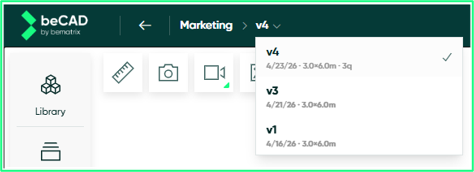
Each version has its own linked documents. For example, screenshots, building plans, 3D exports, and quotes are stored within the version in which they were created
How to rename a project version
- Go to the project settings by clicking on the project name (not the version name)
- Click the pencil icon. A new side panel will be opened
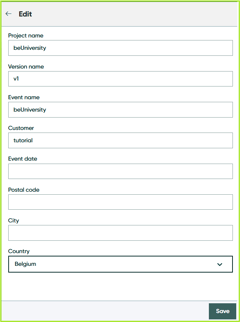
- Edit the version name
- Confirm by clicking Save
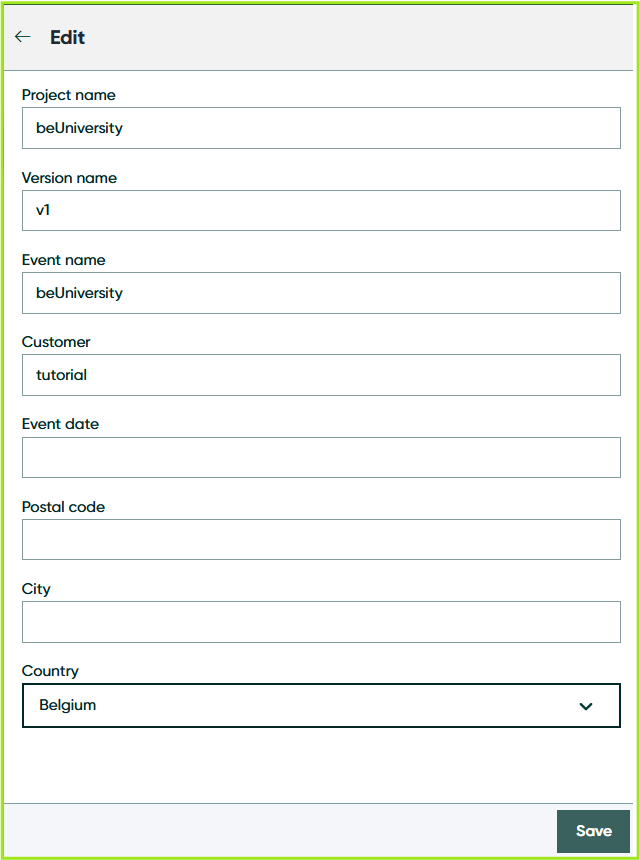
Refresh the page if the changes aren’t visible immediately.
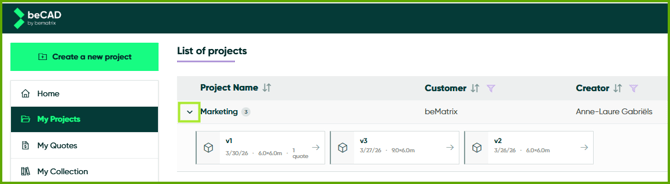
How to see which projects have multiple versions:
- Go to the My Projects page
- Look for projects with an arrow icon in front of the project name
- Click the arrow to expand the project and view its different versions
How to delete a project version*:
- Go to the project settings by clicking on the project name (not the version name)
- Make sure you are in the settings of the correct version
- Click the trash icon to delete the version
- You will be navigated to the My projects page again. Don’t worry the other versions will still be there if you look up the project.
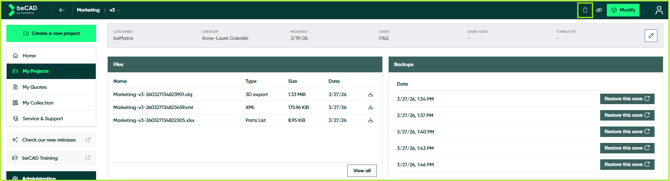
In this photo, version 3 (V3 will be deleted)
*Note: Deleted versions may not always be recoverable, so it’s better to be safe than sorry!